

Dub Conversions require a Business plan subscription
or higher.

- Enable conversion tracking for your links
- Install the
@dub/analyticsclient-side SDK - Install the Dub server-side SDK
- Start sending events
- View your conversions
Step 1: Enable conversion tracking for your links
First, you’ll need to enable conversion tracking for your Dub links to be able to start tracking conversions. There are a few ways to do this:Option 1: On a workspace-level
To enable conversion tracking for all future links in a workspace, you can do the following:- Navigate to your workspace’s Analytics settings page.
- Toggle the Workspace-level Conversion Tracking switch to enable conversion tracking for the workspace.
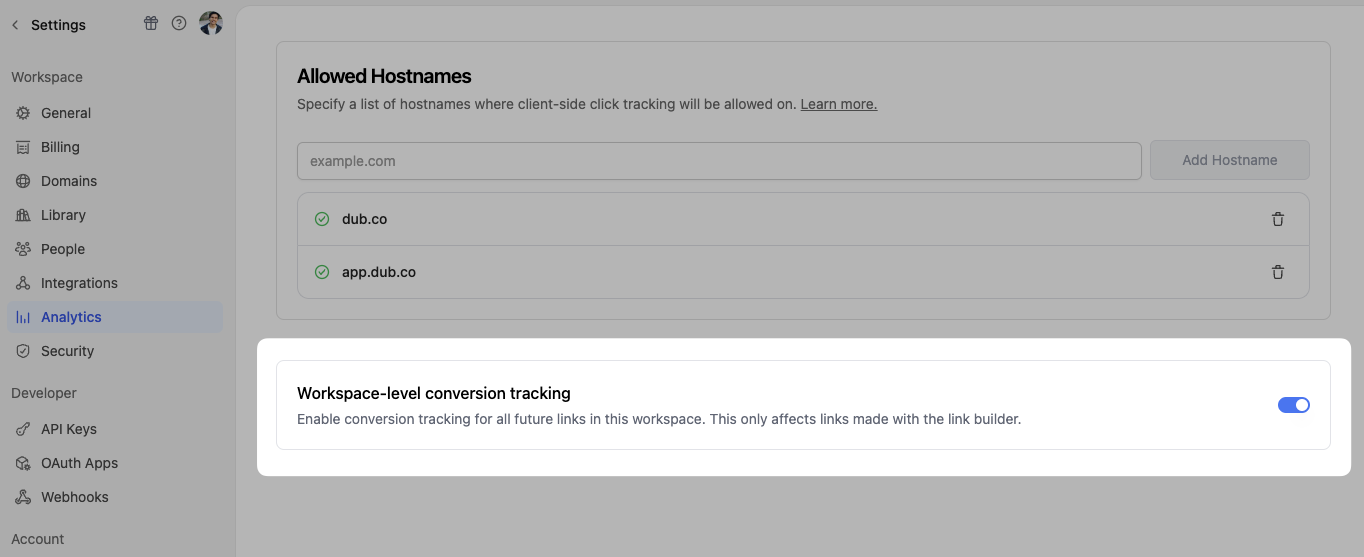
Option 2: On a link-level
If you don’t want to enable conversion tracking for all your links in a workspace, you can also opt to enable it on a link-level. To enable conversion tracking for a specific link, open the Dub Link Builder for a link and toggle the Conversion Tracking switch.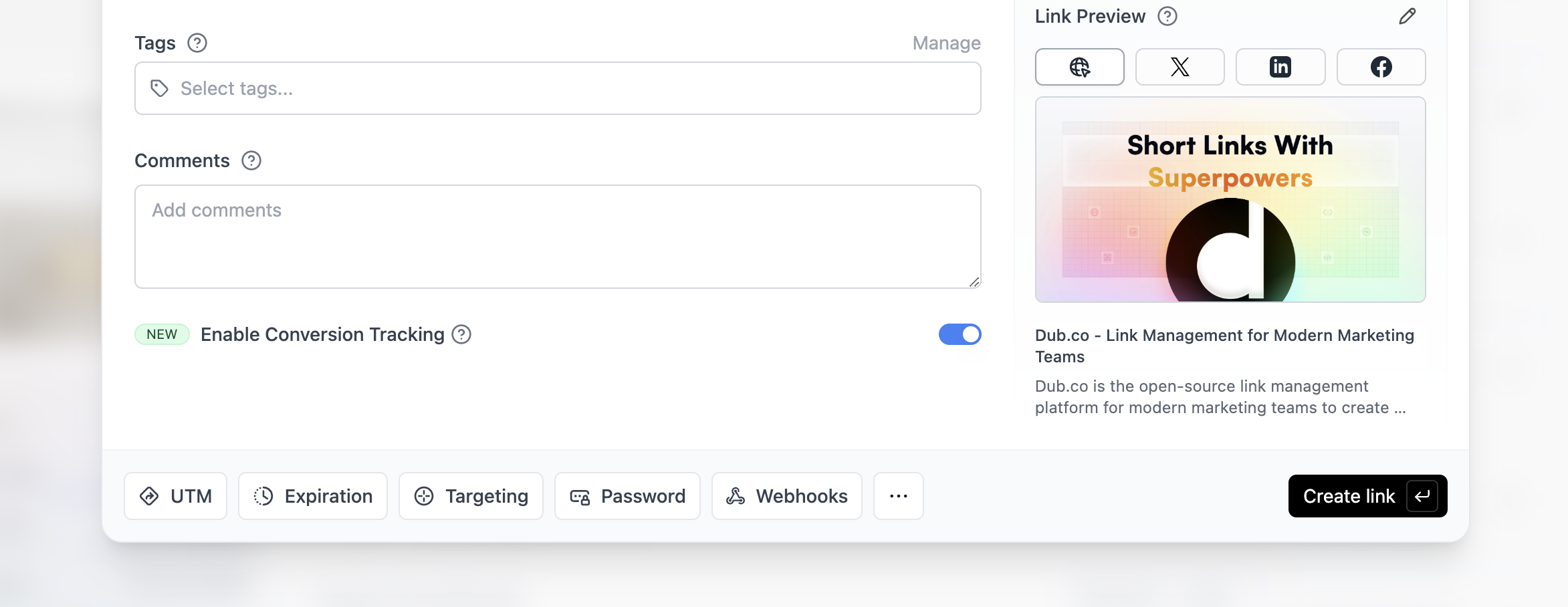
Option 3: Via the API
Alternatively, you can also enable conversion tracking programmatically via the Dub API. All you need to do is passtrackConversion: true when creating or updating a link:
Step 2: Install the @dub/analytics client-side SDK
Next, you’ll need to install the @dub/analytics client-side SDK.
This will handle the detection of the dub_id query parameter and storing it as a first-party cookie, which will be used to attribute subsequent conversion events to the original link.

React
Add Dub Analytics to your React app.
Manual installation
Add Dub Analytics to your website.
Framer
Add Dub Analytics to your Framer site.
Shopify
Add Dub Analytics to your Shopify store.
WordPress
Add Dub Analytics to your WordPress site.
Webflow
Add Dub Analytics to your Webflow site.
Step 3: Install the Dub server-side SDK
Dub Conversions uses server-side event tracking to track conversions. Depending on which framework you’re using, you can use our native SDKs:TypeScript
TypeScript library for the Dub API
Go
Go library for the Dub API
Python
Python library for the Dub API
Ruby
Ruby library for the Dub API
Step 4: Start sending events
Now that you’ve installed the SDKs, you can start sending events to Dub. Since click events are tracked automatically, you’ll only need to send events for the following cases:Step 4a: Sending Lead Events
The first event you’ll want to send is alead event. This happens when a user performs an action that indicates interest in your product or service. This could be anything from:
- Signing up for an account
- Adding a product to cart
- Joining a mailing list

Sign Up, which happens when a user signs up for an account. Depending on which authentication framework you’re using, here are a few examples of how to send Sign Up lead events:
NextAuth.js
Tracking lead events with NextAuth.js
Clerk
Tracking lead events with Clerk
Supabase
Tracking lead events with Supabase
Auth0
Tracking lead events with Auth0
Appwrite
Tracking lead events with Appwrite
The lead event will serve as the source of truth for the customer’s identity and which link they came from. This means that all subsequent actions performed by the customer (e.g. upgrading their plan, purchasing a product) will automatically be attributed to the original link.
Step 4b: Sending Sale Events
The second event you’ll want to send is asale event. This happens when a user purchases your product or service. This could be anything from:
- Subscribing to a paid plan
- Usage expansion (upgrading from one plan to another)
- Purchasing a product

Stripe
Tracking sale conversion events with Stripe and the Dub SDK
Shopify
Tracking sale conversion events with Shopify and the Dub SDK
POST /track/sale API endpoint.
Here are the properties you can include when sending a sale event:
Step 5: View your conversions
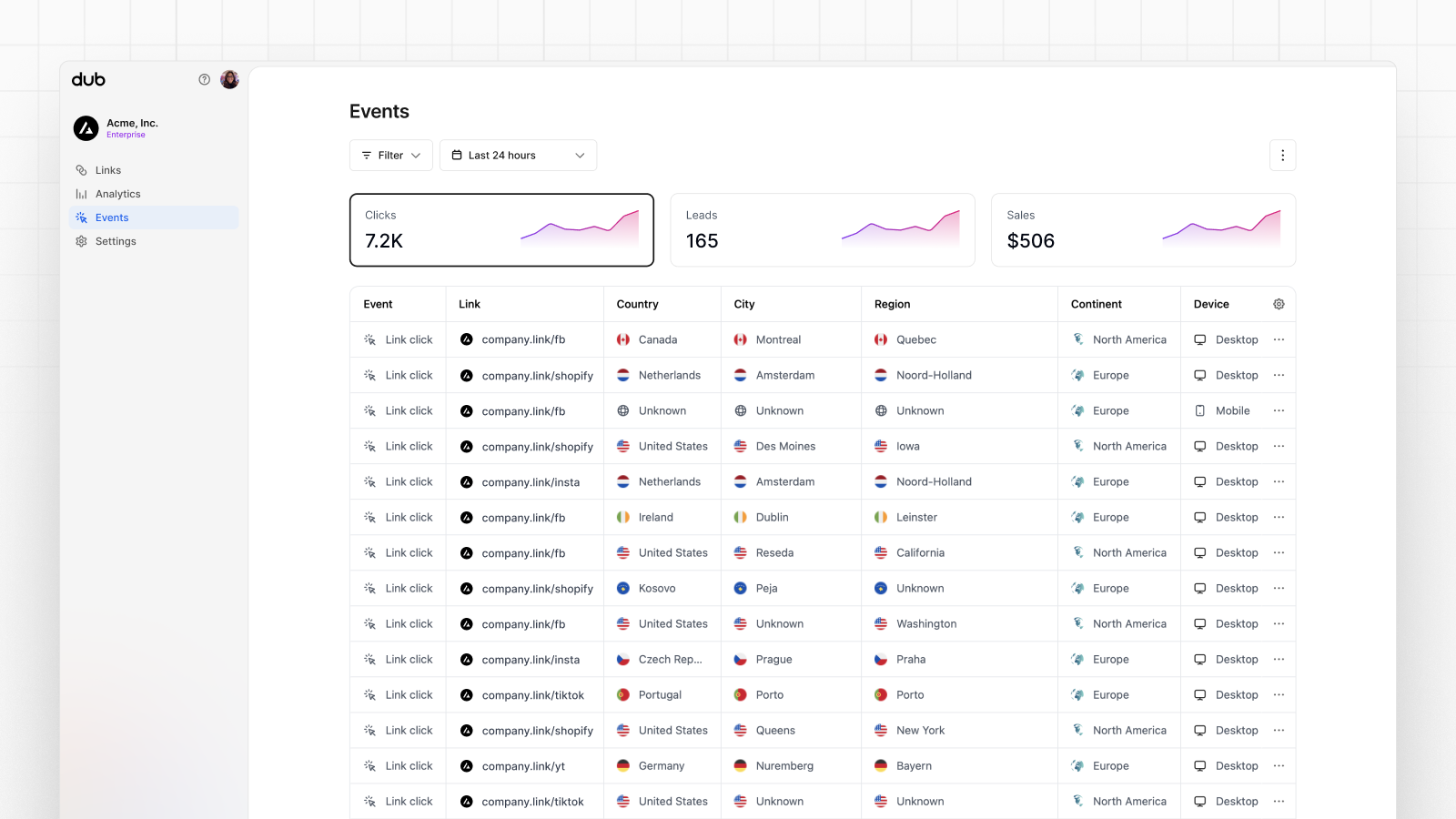
Once you’ve enabled conversion tracking for your links, all your tracked conversions will show up on your Analytics dashboard. We provide 3 different views to help you understand your conversions:- Time-series: A time-series view of the number clicks, leads and sales.
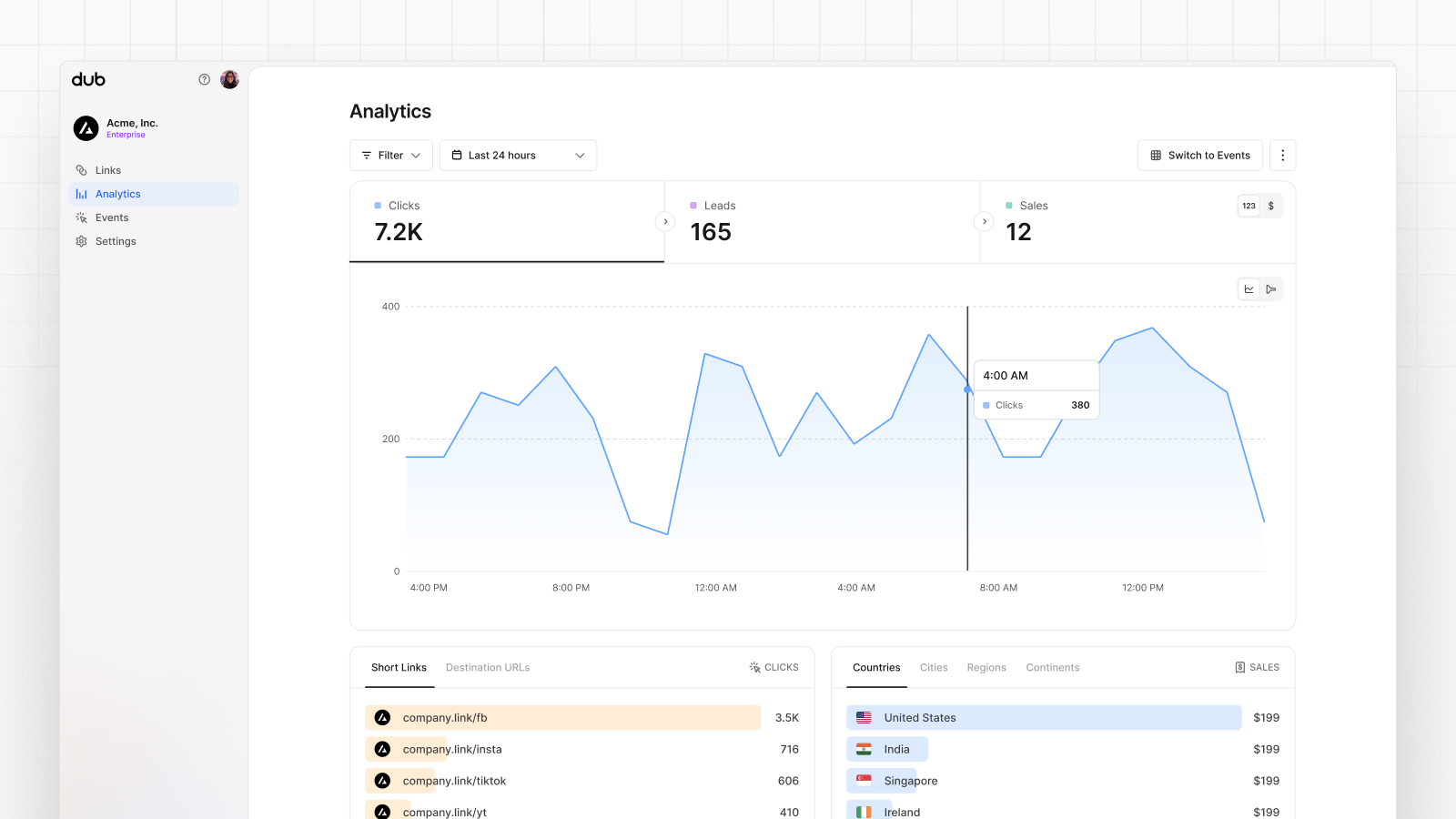
- Funnel chart: A funnel chart view visualizing the conversion & dropoff rates across the different steps in the conversion funnel (clicks → leads → sales).
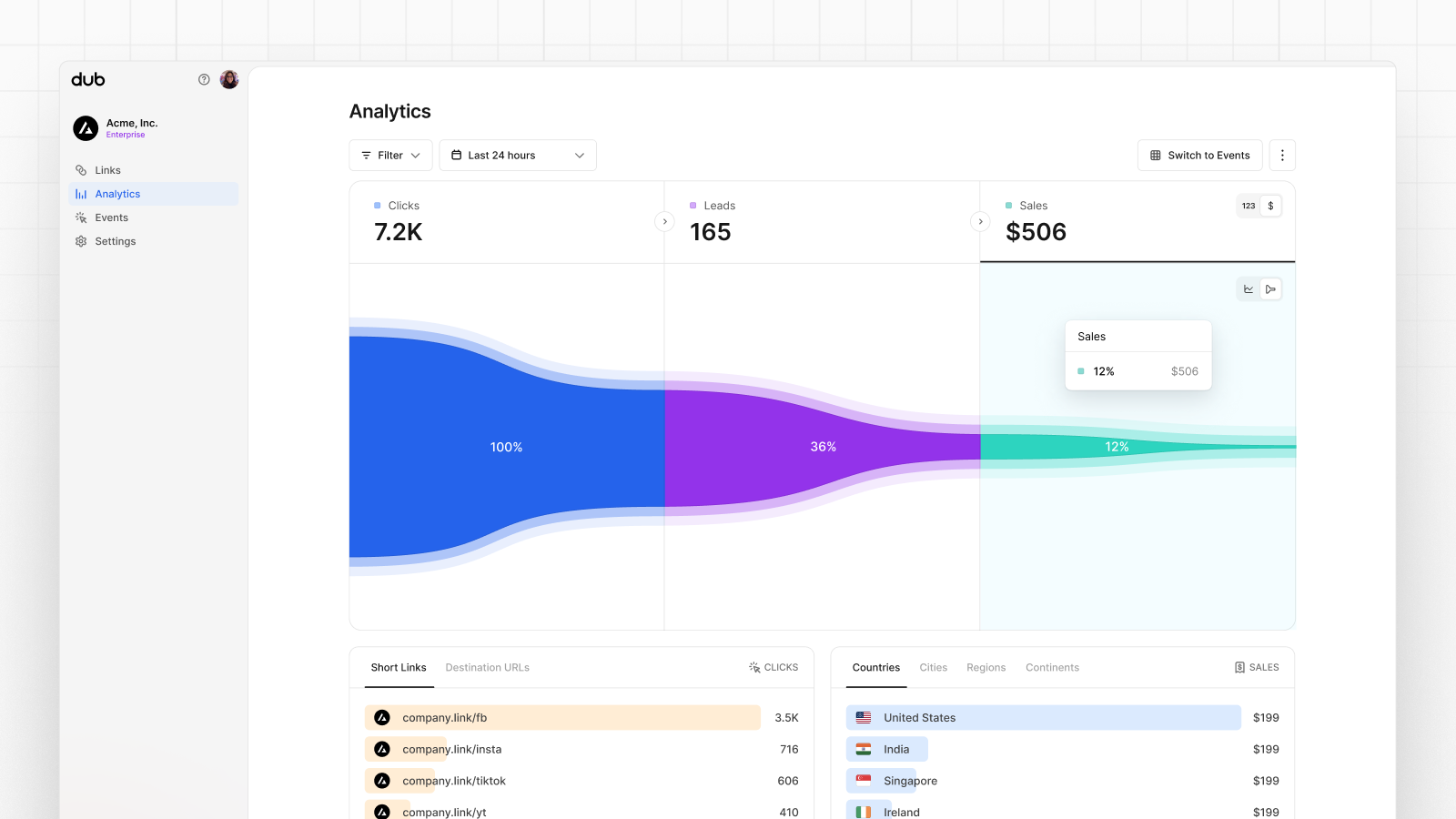
- Real-time events stream: A real-time events stream of every single conversion event that occurs across all your links in your workspace.
Example Apps
Dub Conversions Demo App
See the full example on GitHub.