

- A user clicking on a Dub link
- A user scanning a Dub QR code
Server-side click-tracking
Server-side click-tracking is enabled by default for all Dub links and come with the following attributes:
These events happen on the server-side and cannot be blocked by browser extensions or ad-blockers, which improves the accuracy of your analytics data.
Client-side click-tracking
Alternatively, you can track clicks on the client-side using query parameters (e.g.?via=john, ?ref=jane). This gives you the flexibility to track clicks directly on your website or app, without needing to rely on link redirects.
A few use cases include:
- You are migrating from an existing affiliate management platform that uses query parameters to track conversions and don’t want ask your affiliates to update all their links
- You have dynamically generated referral pages (e.g. Tesla) and want to track clicks using a
track()function inside your application code. - You need to use an unfurled URL for the platform you’re sharing the link on (no short links allowed)
Step 1: Add a custom domain to your Dub workspace
First, you’ll need to add a custom short link domain to your Dub workspace. This is the domain that you’ll use for your short links, as well as theshortDomain attribute in the following steps.
Step 2: Allowlist the your site’s domain
Then, you’ll need to allowlist your site’s domain to allow the client-side click events to be ingested by Dub. To do that, navigate to your workspace’s Analytics settings page and add your site’s domain to the Allowed Hostnames list.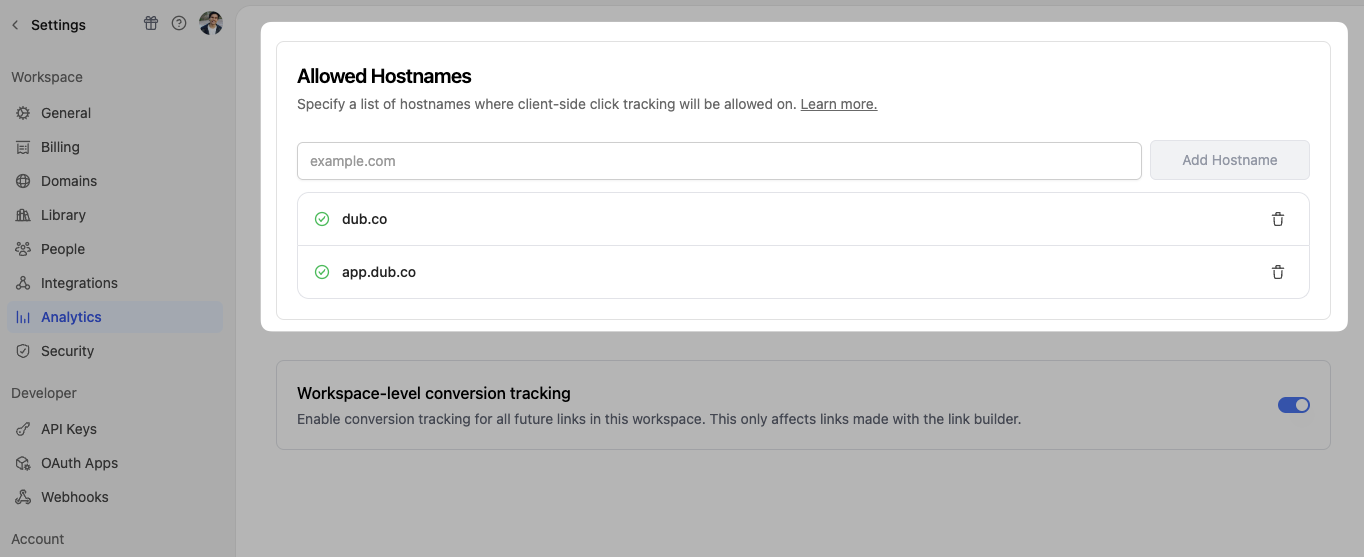
Step 3: Install the Dub Client-side SDK
Lastly, you’ll need to install the Dub Client-side SDK and initialize it with the domain you added in the previous step.<Analytics /> component:
Parameters
Parameters
url
default:"https://api.dub.co"
The base URL for the Dub API. This is useful for setting up reverse
proxies
to avoid adblockers.
first-click | last-click
default:"last-click"
The attribution model to use for the analytics event. The following
attribution models are available:
first-click: The first click model gives all the credit to the first touchpoint in the customer journey.last-click: The last click model gives all the credit to the last touchpoint in the customer journey.
CookieOption Object
JSON-stringified object
Configure the domains that Dub will track. The following properties are available:
string
deprecated
[Deprecated: Use
domainsConfig.refer instead] The Dub custom domain for
referral program client-side click tracking.string
default:"via"
The query parameter to listen to for client-side click-tracking (e.g.
?via=abc123).Step 4 (Optional, but recommended): Set up a reverse proxy
To avoid ad-blockers from blocking your click-tracking requests, we recommend setting up a reverse proxy. Depending on which backend framework you’re using, there are a few different ways to do this:apiHost parameter in the <Analytics /> component to point to your proxy URL.
Step 5: Verify your setup
To verify that your click-tracking is working, run your website locally and append the URL with:- The specific query parameter + you specified in Step 3
- The unique key of your short link
via and your short link is https://go.example.com/abc123, you’ll need to append ?via=abc123 to the URL.
Once you’ve done that, check if the following is true:
- The click tracked correctly in the Analytics tab of your Dub workspace.
- There is a successful
/track/clickrequest in your browser’s Network tab (and no errors in the Console tab). - The
dub_idcookie is being set in your browser upon a successful click-tracking request.