> ## Documentation Index
> Fetch the complete documentation index at: https://speakeasy-20cf8bdf.mintlify.site/llms.txt
> Use this file to discover all available pages before exploring further.
# Introduction
> Click-tracking with Dub Conversions
Clicks are the starting point for all conversion events on Dub.
A click event can be triggered by:
* A user clicking on a [Dub link](https://dub.co/help/article/how-to-create-link)
* A user scanning a [Dub QR code](https://dub.co/features/qr-codes)
In [Dub Analytics](https://dub.co/help/article/dub-analytics), you can [filter between QR code scans and link clicks](https://dub.co/help/article/filter-analytics-by-trigger), giving you a full picture of how your various marketing channels are performing.
Clicks are tracked automatically for all Dub short links upon a redirect event – and you also have the flexibility to track clicks via query parameters using our [Client-side SDK](/sdks/client-side/introduction).
## Server-side click-tracking
Server-side click-tracking is enabled by default for all Dub links and come with the following attributes:
| Attribute | Type | Description |
| :----------- | :------ | :----------------------------------------------------------------------------------------------- |
| `timestamp` | string | The timestamp of the click event |
| `id` | string | The unique ID of the click event |
| `url` | string | The destination URL that the link resolved to – this can vary if geo/device-targeting is enabled |
| `continent` | string | The continent of the user who clicked the link |
| `country` | string | The country of the user who clicked the link |
| `city` | string | The city of the user who clicked the link |
| `device` | string | The device of the user who clicked the link |
| `browser` | string | The browser of the user who clicked the link |
| `os` | string | The operating system of the user who clicked the link |
| `referer` | string | The referrer of the user who clicked the link |
| `refererUrl` | string | The full referrer URL of the user who clicked the link |
| `qr` | boolean | Whether the click event was triggered by a QR code scan |
| `ip` | string | The IP address of the user who clicked the link (non-EU users only) |
These events happen on the server-side and cannot be blocked by browser extensions or ad-blockers, which improves the accuracy of your analytics data.
## Client-side click-tracking
Alternatively, you can track clicks on the client-side using query parameters (e.g. `?via=john`, `?ref=jane`). This gives you the flexibility to track clicks directly on your website or app, without needing to rely on link redirects.
A few use cases include:
* You are migrating from an existing affiliate management platform that uses query parameters to track conversions and don't want ask your affiliates to update all their links
* You have dynamically generated referral pages (e.g. [Tesla](https://www.tesla.com/referral/peeroke520149)) and want to track clicks using a `track()` function inside your application code.
* You need to use an unfurled URL for the platform you're sharing the link on (no short links allowed)
With our [Client-side SDK](/sdks/client-side/introduction), you can do exactly that. Here's how you can enable client-side click-tracking for your links:
### Step 1: Add a custom domain to your Dub workspace
First, you'll need to [add a custom short link domain](https://dub.co/help/article/how-to-add-custom-domain) to your Dub workspace.
This is the domain that you'll use for your short links, as well as the `shortDomain` attribute in the following steps.
### Step 2: Allowlist the your site's domain
Then, you'll need to allowlist your site's domain to allow the client-side click events to be ingested by Dub. To do that, navigate to your [workspace's Analytics settings page](https://app.dub.co/settings/analytics) and add your site's domain to the **Allowed Hostnames** list.
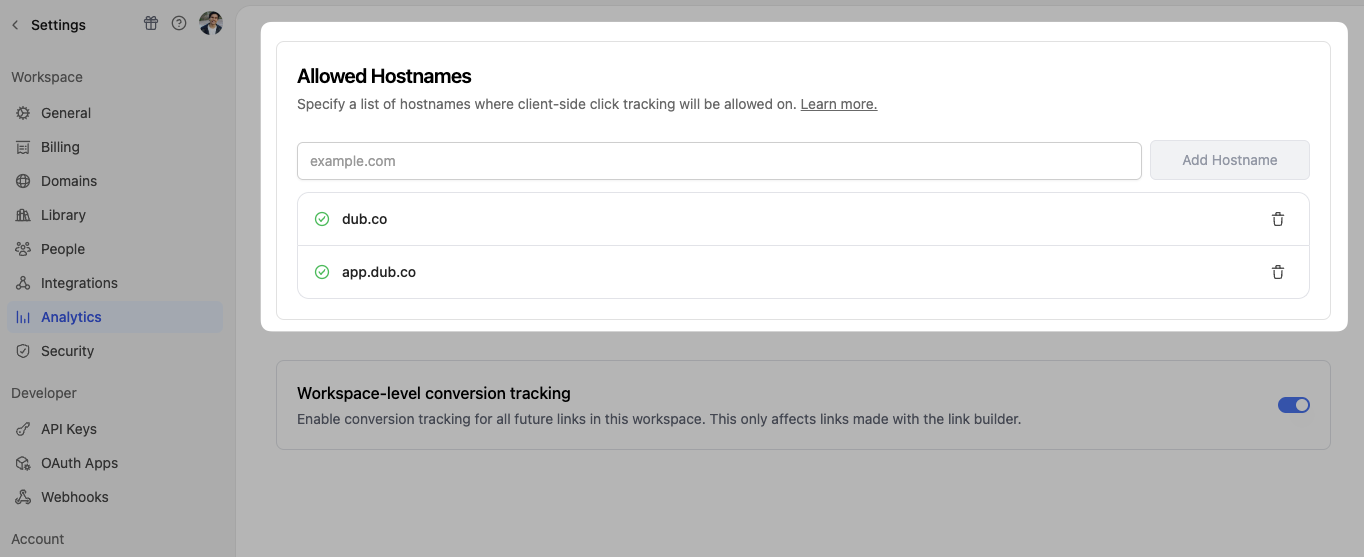 When testing things out locally, you can add `localhost` to the **Allowed
Hostnames** list temporarily. This will allow local events to be ingested by
Dub. Don't forget to remove it once you're ready to go live!
### Step 3: Install the Dub Client-side SDK
Lastly, you'll need to install the Dub [Client-side SDK](/sdks/client-side/introduction) and initialize it with the domain you added in the previous step.
```typescript React/Next.js theme={null}
// install the package (e.g. npm install @dub/analytics)
import { Analytics as DubAnalytics } from "@dub/analytics/react";
export default function App() {
return (
{/* Your app code here */}
);
}
```
```javascript Other Frameworks theme={null}
// include this script tag in your HTML Head tag
```
Here's the full list of parameters you can pass to the `` component:
The base URL for the Dub API. This is useful for [setting up reverse
proxies](/conversions/clicks/introduction#step-4-optional-but-recommended-set-up-a-reverse-proxy)
to avoid adblockers.
The attribution model to use for the analytics event. The following
attribution models are available:
* `first-click`: The first click model
gives all the credit to the first touchpoint in the customer journey.
* `last-click`: The last click model gives all the credit to the last
touchpoint in the customer journey.
Specifies the value for the `Domain` Set-Cookie attribute. This is useful
for cross-domain tracking. Example: `.example.com`
Specifies the `Date` object to be the value for the `Expires` Set-Cookie
attribute. Example: `new Date('2024-12-31')`
Specifies the number (in days) to be the value for the `Expires`
Set-Cookie attribute. Example: `90`
Specifies the value for the `Path` Set-Cookie attribute. By default, the
path is considered the "default path". Example: `/`
Configure the domains that Dub will track. The following properties are available:
The Dub custom domain for [referral program client-side click tracking](http://d.to/clicks/refer)
(previously `shortDomain`).
Example: `refer.dub.co`
The Dub short domain for tracking site visits.
Example: `site.dub.co`
An array of domains for cross-domain tracking. When configured, the existing
`dub_id` cookie will be automatically appended to all outbound links
targeting these domains to enable cross-domain tracking across different
applications.
Example: `["dub.sh", "git.new"]`
\[Deprecated: Use `domainsConfig.refer` instead] The Dub custom domain for
[referral program client-side click tracking](http://d.to/clicks/refer).
The query parameter to listen to for client-side click-tracking (e.g.
`?via=abc123`).
Custom properties to pass to the script tag. Refer to
[MDN](https://developer.mozilla.org/en-US/docs/Web/API/HTMLScriptElement) for
all available options.
### Step 4 (Optional, but recommended): Set up a reverse proxy
To avoid ad-blockers from blocking your click-tracking requests, we recommend setting up a reverse proxy.
Depending on which backend framework you're using, there are a few different ways to do this:
```javascript Next.js theme={null}
// next.config.js
module.exports = {
async rewrites() {
return [
{
source: "/_proxy/dub/track/:path",
destination: "https://api.dub.co/track/:path",
},
];
},
};
```
```json Vercel theme={null}
// vercel.json
{
"rewrites": [
{
"source": "/_proxy/dub/track/:path",
"destination": "https://api.dub.co/track/:path"
}
]
}
```
Once you've set up your reverse proxy, don't forget to update the `apiHost` parameter in the `` component to point to your proxy URL.
```typescript React/Next.js theme={null}
import { Analytics as DubAnalytics } from "@dub/analytics/react";
export default function App() {
return (
{/* Your app code here */}
);
}
```
```javascript Other Frameworks theme={null}
// include this script tag in your HTML Head tag
```
### Step 5: Verify your setup
To verify that your click-tracking is working, run your website locally and append the URL with:
* The specific query parameter + you specified in [Step 3](#step-3-install-the-dub-client-side-sdk)
* The unique key of your short link
For example, if the query parameter you specified in Step 3 is `via` and your short link is `https://go.example.com/abc123`, you'll need to append `?via=abc123` to the URL.
Once you've done that, check if the following is true:
1. The click tracked correctly in the [**Analytics**](https://app.dub.co/analytics) tab of your Dub workspace.
2. There is a successful `/track/click` request in your browser's **Network** tab (and no errors in the **Console** tab).
3. The `dub_id` cookie is being set in your browser upon a successful click-tracking request.
When testing things out locally, you can add `localhost` to the **Allowed
Hostnames** list temporarily. This will allow local events to be ingested by
Dub. Don't forget to remove it once you're ready to go live!
### Step 3: Install the Dub Client-side SDK
Lastly, you'll need to install the Dub [Client-side SDK](/sdks/client-side/introduction) and initialize it with the domain you added in the previous step.
```typescript React/Next.js theme={null}
// install the package (e.g. npm install @dub/analytics)
import { Analytics as DubAnalytics } from "@dub/analytics/react";
export default function App() {
return (
{/* Your app code here */}
);
}
```
```javascript Other Frameworks theme={null}
// include this script tag in your HTML Head tag
```
Here's the full list of parameters you can pass to the `` component:
The base URL for the Dub API. This is useful for [setting up reverse
proxies](/conversions/clicks/introduction#step-4-optional-but-recommended-set-up-a-reverse-proxy)
to avoid adblockers.
The attribution model to use for the analytics event. The following
attribution models are available:
* `first-click`: The first click model
gives all the credit to the first touchpoint in the customer journey.
* `last-click`: The last click model gives all the credit to the last
touchpoint in the customer journey.
Specifies the value for the `Domain` Set-Cookie attribute. This is useful
for cross-domain tracking. Example: `.example.com`
Specifies the `Date` object to be the value for the `Expires` Set-Cookie
attribute. Example: `new Date('2024-12-31')`
Specifies the number (in days) to be the value for the `Expires`
Set-Cookie attribute. Example: `90`
Specifies the value for the `Path` Set-Cookie attribute. By default, the
path is considered the "default path". Example: `/`
Configure the domains that Dub will track. The following properties are available:
The Dub custom domain for [referral program client-side click tracking](http://d.to/clicks/refer)
(previously `shortDomain`).
Example: `refer.dub.co`
The Dub short domain for tracking site visits.
Example: `site.dub.co`
An array of domains for cross-domain tracking. When configured, the existing
`dub_id` cookie will be automatically appended to all outbound links
targeting these domains to enable cross-domain tracking across different
applications.
Example: `["dub.sh", "git.new"]`
\[Deprecated: Use `domainsConfig.refer` instead] The Dub custom domain for
[referral program client-side click tracking](http://d.to/clicks/refer).
The query parameter to listen to for client-side click-tracking (e.g.
`?via=abc123`).
Custom properties to pass to the script tag. Refer to
[MDN](https://developer.mozilla.org/en-US/docs/Web/API/HTMLScriptElement) for
all available options.
### Step 4 (Optional, but recommended): Set up a reverse proxy
To avoid ad-blockers from blocking your click-tracking requests, we recommend setting up a reverse proxy.
Depending on which backend framework you're using, there are a few different ways to do this:
```javascript Next.js theme={null}
// next.config.js
module.exports = {
async rewrites() {
return [
{
source: "/_proxy/dub/track/:path",
destination: "https://api.dub.co/track/:path",
},
];
},
};
```
```json Vercel theme={null}
// vercel.json
{
"rewrites": [
{
"source": "/_proxy/dub/track/:path",
"destination": "https://api.dub.co/track/:path"
}
]
}
```
Once you've set up your reverse proxy, don't forget to update the `apiHost` parameter in the `` component to point to your proxy URL.
```typescript React/Next.js theme={null}
import { Analytics as DubAnalytics } from "@dub/analytics/react";
export default function App() {
return (
{/* Your app code here */}
);
}
```
```javascript Other Frameworks theme={null}
// include this script tag in your HTML Head tag
```
### Step 5: Verify your setup
To verify that your click-tracking is working, run your website locally and append the URL with:
* The specific query parameter + you specified in [Step 3](#step-3-install-the-dub-client-side-sdk)
* The unique key of your short link
For example, if the query parameter you specified in Step 3 is `via` and your short link is `https://go.example.com/abc123`, you'll need to append `?via=abc123` to the URL.
Once you've done that, check if the following is true:
1. The click tracked correctly in the [**Analytics**](https://app.dub.co/analytics) tab of your Dub workspace.
2. There is a successful `/track/click` request in your browser's **Network** tab (and no errors in the **Console** tab).
3. The `dub_id` cookie is being set in your browser upon a successful click-tracking request.